AI browser automation is software that drives a real browser from a plain instruction. The agent reads the page, picks an element, clicks it, types into it, and moves on, using the logins you already have instead of an API key. It is genuinely good at reading and gathering. It is still shaky at writing, meaning logins, forms, checkouts, and uploads. That one split should decide how you deploy it, what you gate, and what you pay.
01TL;DR
- The read/write gap is the headline. Web Bench ran 5,750 tasks across 452 websites and found agents do well on retrieval and badly on write operations like logging in, form filling, and downloads.
- Benchmark scores flatter these tools. Browser Use reports 89.1 percent on WebVoyager, but that suite is 643 tasks across 15 sites and skews read heavy.
- Prefer structured page data over pixels. Playwright MCP drives pages through accessibility snapshots, "bypassing the need for screenshots or visually-tuned models."
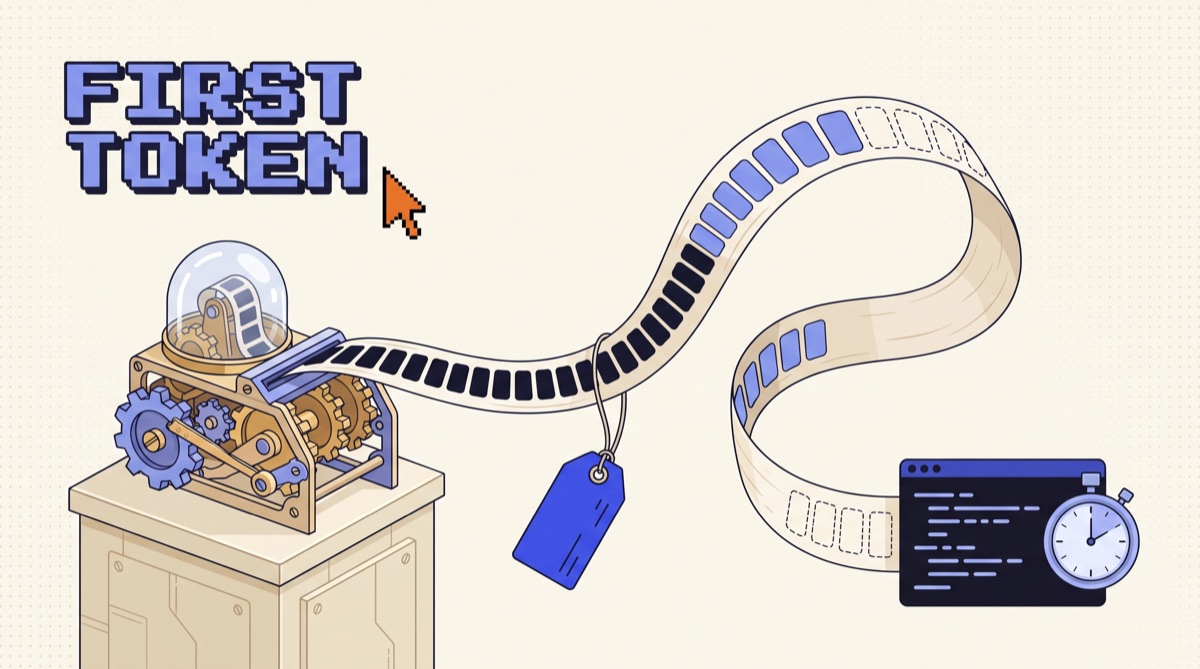
- Screenshots are the cost center. Anthropic's computer use docs put each one at roughly 1,000 to 1,800 input tokens, and they stack up across a loop.
- Every page is untrusted input. Anthropic's own red teaming moved browser prompt injection from 23.6 percent to 11.2 percent in autonomous mode, and a browser specific attack class from 35.7 percent to zero. Scope the session anyway.
02The three shapes it ships in
Before choosing anything, be clear about which of these you actually want, because they solve different problems.
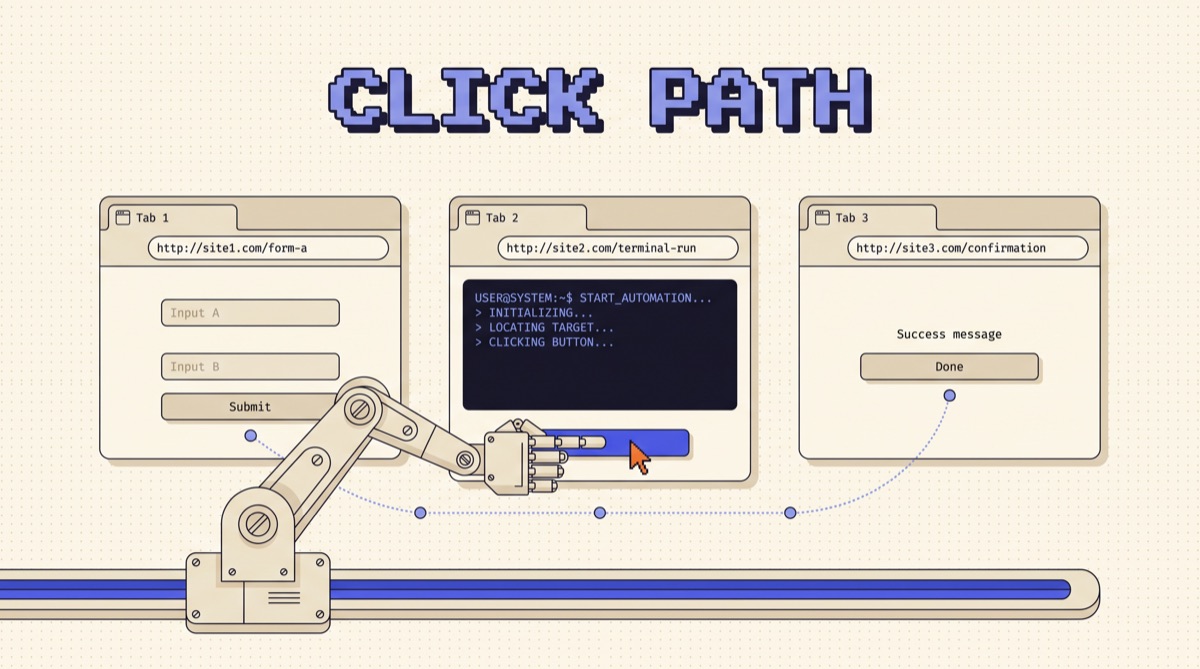
The extension runs inside the browser you already use. Claude in Chrome is the reference implementation: it reads the page you are on, clicks, types, navigates, and fills forms using your existing logins, and it now auto approves actions its safety classifiers judge safe rather than asking on every step. This is the right shape for one off work you are supervising, and for sites that have no API.
The hosted agent runs a browser in someone else's cloud and returns a result. Good for scale and for jobs nobody is watching. Bad for anything that needs your session, since you now have to move credentials off your machine.
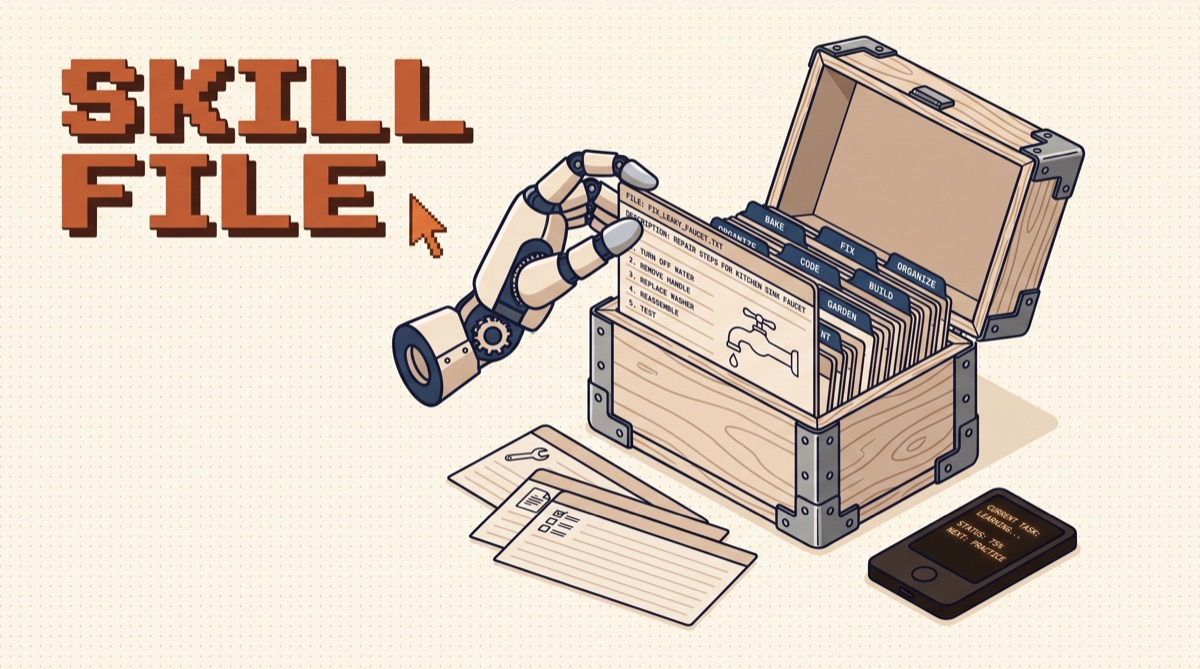
The library or MCP server is the one builders should default to. Playwright MCP and Browser Use both give you a browser as a tool your own agent calls, which means you own the loop, the retries, the logging, and the stopping conditions. Everything below assumes this shape.
03The read/write split is the whole story
Most demos you have seen were read tasks. Find the pricing page, pull the ten latest listings, summarize a dashboard. Those work. The moment the task writes something, the numbers fall off a cliff.
Web Bench was built to expose that. It covers 5,750 tasks across 452 websites, with 2,454 tasks open sourced, and it deliberately separates read operations from write operations. Read performance was better than expected across agents. Write performance was poor across all of them, with two failure modes doing most of the damage: agents believing a task was finished when it was not, and agents unable to identify the element they needed to interact with.
That second one is quiet and expensive. An agent that cannot find the submit button will often keep trying adjacent things, burn twenty steps, and then report success. The fix is not a better prompt. The fix is a verification step that reads the page back and confirms the state changed, plus a step ceiling that kills the run before it improvises.
The benchmark you see quoted in marketing is usually WebVoyager, where Browser Use reports 89.1 percent. That number is real, and it is also 643 tasks across 15 websites weighted toward retrieval. Read it as a ceiling under friendly conditions, not as a forecast for your internal admin panel behind SSO.
04DOM or pixels: pick your failure mode
There are three ways an agent can perceive a page, and the one you choose sets your cost, your speed, and your failure mode.
Playwright MCP takes the strongest position here. It exposes pages as structured accessibility snapshots and states plainly that it "uses Playwright's accessibility tree, not pixel-based input" and that "no vision models needed, operates purely on structured data." Coordinate based clicking is still available, but it is opt in behind a --caps=vision flag rather than the default. That ordering is the right instinct.
Pixels are not obsolete. A canvas based editor, a PDF viewer, a remote desktop, a chart with no text nodes: none of those show up usefully in an accessibility tree, and an agent working blind on them will fail with confidence. Build the hybrid. Structured snapshots as the default path, screenshots as a capability you enable for the specific surfaces that require them.
05The token math nobody budgets for
Screenshots are the line item that surprises people. Anthropic's computer use documentation puts each screenshot at roughly 1,000 to 1,800 input tokens depending on resolution and compression, and warns that long agent loops accumulate them quickly. It also notes that once a single request carries more than 20 images, every image in it is held to a stricter per side limit.
Here is the part that actually bites. Those images do not cost you once. They live in the conversation, so step 30 resends everything from steps 1 through 29. A 30 step run at 1,400 tokens per screenshot is not 42,000 image tokens, it is closer to the sum of a growing context, which is roughly an order of magnitude worse before you touch a single line of prompt text.
Four controls, in order of payoff:
- Do not take the screenshot. If a structured snapshot answers the question, that step carries no pixels.
- Cap the resolution. The docs recommend 1024x768 or 1280x720 for general desktop work and 1280x800 or 1366x768 for web apps, and advise against going above 1920x1080.
- Prune in batches, not every turn. Dropping one old image per turn invalidates your prompt cache constantly. Drop ten at once and the cache still earns its keep.
- Batch actions per response. Multiple tool calls in one turn cuts round trips and latency, and every round trip you avoid is a screenshot you never paid for.
If cost control across your whole stack is the current problem, I went deeper on it in how to cut your AI API bill.
06Your logged-in session is the attack surface
A browser agent reads whatever is on the page, and the page is written by someone else. That is the entire security story. Text hidden in a comment, a fake form field, a URL crafted to look like an instruction: all of it arrives in the model's context looking exactly like the task you gave it.
The published numbers are worth knowing precisely. When Anthropic first put Claude in Chrome into beta, adversarial testing found a 23.6 percent attack success rate in autonomous mode before mitigations and 11.2 percent after, and a browser specific attack class involving hidden form fields and URL manipulation dropped from 35.7 percent to zero. The generally available release layers on content screening before the model acts and classifiers that block actions misaligned with the request, and Anthropic reports far lower rates with full safeguards on. Lower is not zero, and your agent probably has fewer safeguards than theirs.
So build the boring controls:
- Run the agent in a separate browser profile. Not the one signed into your bank, your email, your DNS, and your production console at the same time.
- Keep a domain allowlist. Enterprise deployments of Claude in Chrome can restrict which sites it operates on, and your own harness should do the same.
- Put a human confirm on the verbs that matter: send, pay, publish, delete, share, grant.
- Log every action with the URL it happened on, so a bad run is auditable after the fact rather than a mystery.
The same threat model I wrote up in how to prevent prompt injection applies here with the volume turned up, because the untrusted content and the credentials are now in the same process.
07A build order that works
- Check for an API first. If the site has one, the browser agent is a worse version of it. Browser automation is for the surfaces that never shipped an interface for machines. The connectors I actually keep installed are in the MCP big three.
- Start with a read job. Pick something you do manually every week that only gathers information. Ship that on a schedule.
- Add verification before you add scope. After every write, read the page back and assert the state you expected. No assertion, no write.
- Set two ceilings. A step ceiling and a cost ceiling, both of which stop the run rather than warn about it.
- Then add one write task, behind a confirm, on one site, for one week. Read every trace by hand.
- Widen only where the traces are boring. Boring traces are the only evidence that matters.
08The bottom line
AI browser automation is production ready for the half of the job that reads and experimental for the half that writes. Point it at retrieval and monitoring, where a mistake is visible and a retry is free. Keep it on structured page data so you are not paying for screenshots you did not need. Gate every action that changes something on someone else's server, and never run it in the profile that holds your real logins. Do that, and it quietly takes over a real chunk of your week.
Steal the setup: the MCP big three has the connectors I run first, and the newsletter gets the builds and teardowns as I ship them.
Frequently asked
What is AI browser automation?
AI browser automation is software that drives a real browser from a natural language instruction instead of a hand written script. The agent looks at the page, decides which element to act on, then clicks, types, scrolls, or navigates, usually inside a session that already carries your logins. It ships in three shapes. An extension that runs in the browser you already use, such as Claude in Chrome. A hosted agent that runs a browser in someone else's cloud and hands you back the result. And a library or MCP server you drive from your own code, such as Playwright MCP or Browser Use. The important difference from classic automation is that nobody wrote the selectors in advance, which is exactly why it survives a redesign and exactly why it fails in ways a script never would.
Is AI browser automation reliable enough for production?
For reading, mostly yes. For writing, not unattended. Web Bench, a benchmark of 5,750 tasks across 452 websites, split its tasks into read operations and write operations and found the gap is not subtle: agents handle information retrieval well and do badly on logging in, filling forms, and downloading files. The two dominant failure modes are agents reporting a task complete when it was not, and agents failing to identify the element they need to touch. That shape should decide your architecture. Let it run read work on a schedule with no human waiting. Put write work behind a preview and a confirm click, or behind a real API when one exists.
Should a browser agent use the DOM or screenshots?
Use the accessibility tree first and pixels only when you have to. Playwright MCP is explicit about this design: it drives pages through structured accessibility snapshots rather than screenshots, so no vision model is required and the input is deterministic text rather than an image the model has to interpret. That is cheaper, faster, and far less likely to misclick. Pixel based control earns its keep on canvas apps, PDF viewers, remote desktops, legacy plugins, and anything drawn outside the accessibility tree. The practical build is a hybrid: structured snapshots as the default path, screenshots kept as a fallback capability you switch on for the specific pages that need it.
How much does it cost to run a browser agent?
Screenshots dominate the bill. Anthropic's computer use documentation puts each screenshot at roughly 1,000 to 1,800 input tokens depending on resolution and compression, and notes that long agent loops accumulate them quickly. The trap is that the images stay in the conversation, so a 30 step run does not pay for 30 screenshots, it pays for a context that grows by one screenshot every turn. Three fixes: prefer structured snapshots over images so most steps carry no pixels at all, prune old screenshots in batches rather than one per turn so prompt caching still hits, and cap the resolution (1024x768 or 1280x800 is the documented guidance, and above 1920x1080 costs you more than it buys).
Is it safe to give an AI agent access to my logged-in browser?
Treat every page it opens as untrusted input, because prompt injection is the live risk and the published numbers are not zero. When Anthropic first tested Claude in Chrome, 23.6 percent of adversarial cases succeeded in autonomous mode before mitigations, dropping to 11.2 percent after, with a browser specific class of attack (hidden form fields and URL manipulation) going from 35.7 percent to zero. The generally available version reports far lower rates with full safeguards on. The control that keeps working regardless is scope: run the agent in a separate browser profile that is not signed into your bank, your email, and your admin panels at once, restrict it to an allowlist of domains, and keep a human confirm on anything that sends, pays, publishes, or deletes.